Quick Notes
- We will still be running automated backups on RunCloud. This is a secondary backup, which is good practice—additionally UpdraftPlus allows us to display backups that have been run in Reporting from MainWP which is the primary reason we are setting these up.
- Do not ever backup files directly on the server, it uses up too much space and can fill the server disk space quickly—if the server disk space reaches 100% all the sites on this server will go down, so this is really important!
Configuration
Connect
- Login to WordPress admin, go to UpdraftPlus in right sidebar menu. And go to Premium/Extensions
- Login to the “Connect your TeamUpdraft account” the Updraft creds are in 1pass
- Once connected the page should refresh and you should see a message, “You have an inactive purchase – activate it on this site” click this.
- Page will refresh again and you’ll see another link to click that says “Assigned to this site – please follow this link to update the plugin in order to activate it” click this and it will update the plugin.
- If you go to Premium/Extensions again now you’ll see it’s connected.
Schedule & Storage
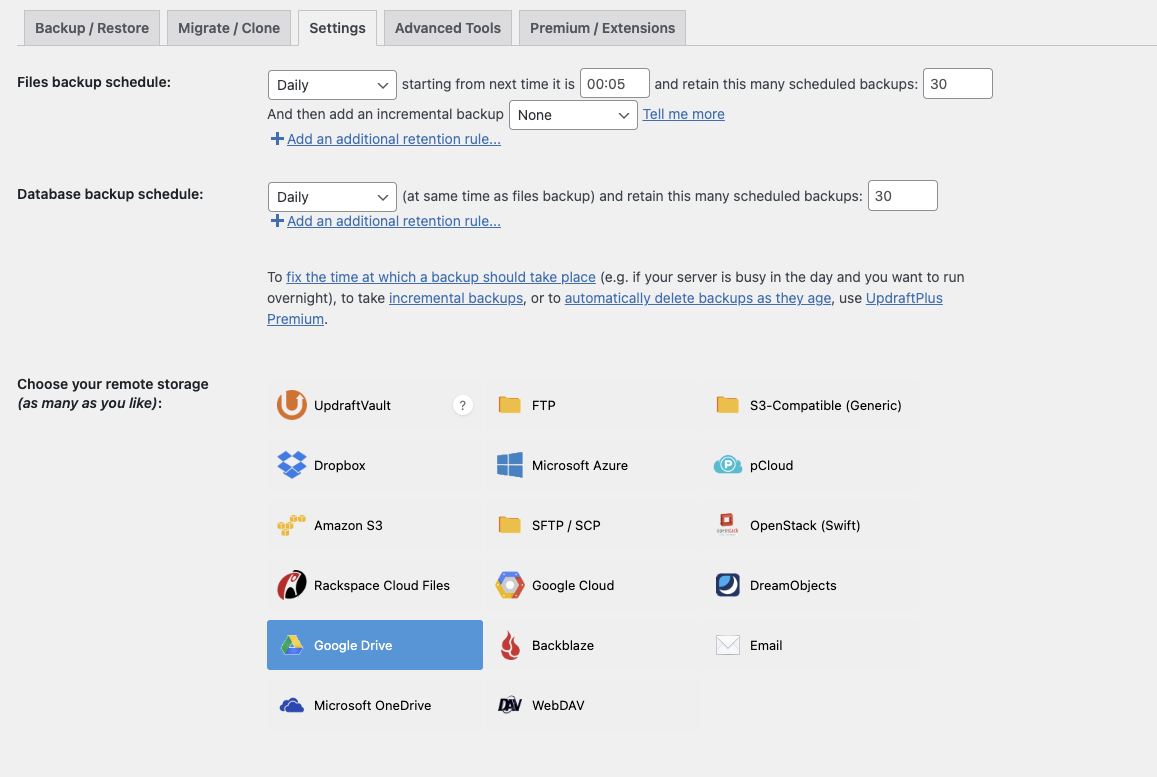
- Next go to Settings tab. Make sure backups are set to backup daily and retain 30 backups (essentially 1 month)
- See screenshot below:
Google Drive & Folders To Backup
- Under same Settings tab.
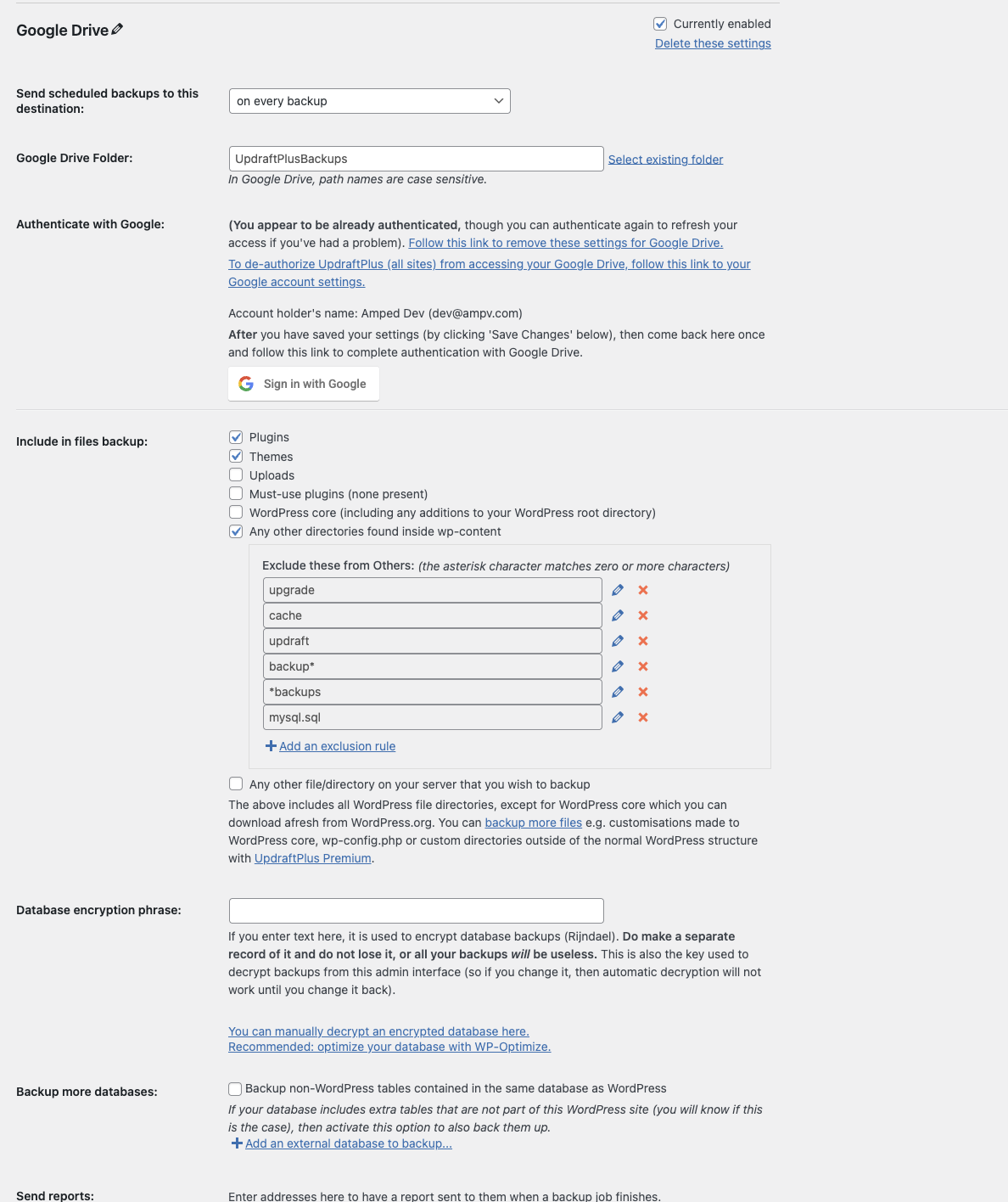
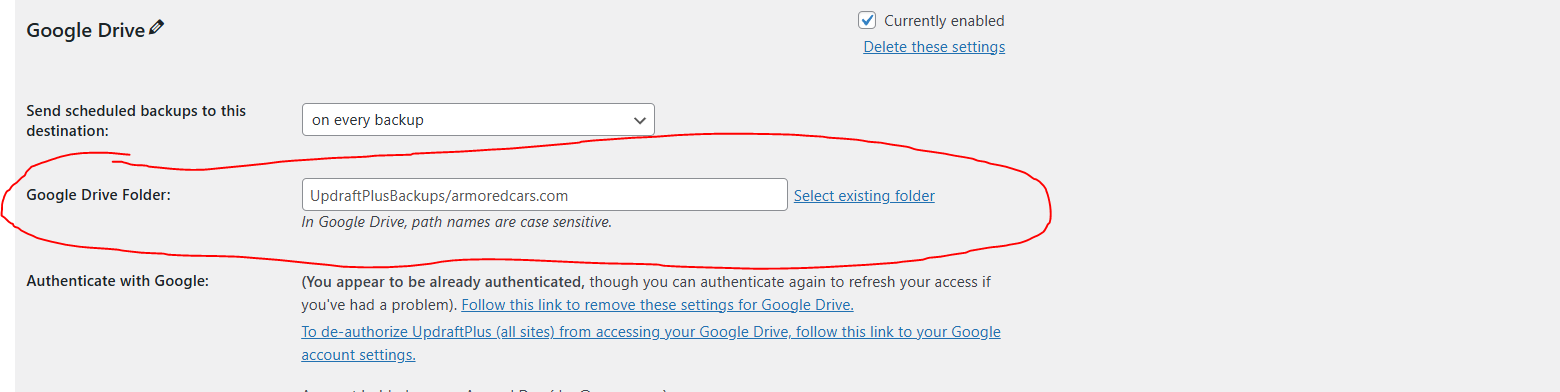
- Google Drive location: Files will be saved under the dev@ampv.com Google Drive. There is a parent folder named “UpdraftPlusBackups”, and under this parent folder please add a new folder for every website we add with the domain name i.e. “domain.com”
- First time setting this up you will need to login to dev@ampv.com and accept Google’s terms. If there is no process for this, feel free to add to the process to this doc.
- To add a new folder add /domainname after selecting the folder like the below screenshot updraftplus will automatically create a new folder
- Include in files backup: Let’s just uncheck “Uploads.” These backups are secondary to RunCloud backups, so we don’t really need uploads, we’ll have them in RunCloud backups.
- See below screenshot: